
Your photos, your rules.
Off the cloud, for good.

Off The Cloud is a NAS and a social network in one small box you own outright: your photos, videos, and documents back up in full resolution, get AI-tagged for instant search, and stay behind RAID-1 protected disks — with an optional, ethical social feed for sharing memories with the people who actually matter, free of ads, algorithms, and doomscrolling.
The easiest way: the app downloads the image and checks its signature, writes the card itself on Windows and Linux, and guides you through each step.
ARM versions, and first-run tips for Windows and Linux, are in the download section.
- Install the app and choose Set Up a New Device…: in the Mac app's Settings, or in the tray menu on Windows and Linux.
- Make the card. The app downloads the image and checks it against the project's signature. On Windows and Linux it then writes it to a MicroSD card of 8 GB or more, after asking for administrator permission; on a Mac it opens Raspberry Pi Imager to write the card and tells you what to choose there.
- Plug in the disks (into the two blue USB ports), insert the card and power the Pi on. After a minute it announces itself over Bluetooth.
- Finish the setup over Bluetooth. On a Mac, right in the app: On this Mac (or use your phone). On Windows and Linux, in the phone app (iOS or Android): tap Set up a new device. Either way it asks for your WiFi, a name and password for the device and how to use the disks, then installs the software - about 20 minutes.
- Sign in when it's done: the app connects to the new device by itself with the password you chose, or open
https://<name>.off-the.cloudin a browser.
- Flash it to the MicroSD card with Raspberry Pi Imager: "Use custom", pick the file, write. Skip Imager's own customisation step.
- Plug in the disks (into the two blue USB ports), insert the card and power the Pi on. After a minute it announces itself over Bluetooth.
- Set it up from your phone with the app (iOS or Android): on the welcome screen tap Set up a new device. It finds the Pi over Bluetooth and runs the setup right there - your phone stays on its own WiFi. It asks for your WiFi, a name and password for the device and how to use the disks, then installs the software - about 20 minutes.
- Sign in when it's done: the app connects to the new device by itself with the password you chose, or open
https://<name>.off-the.cloudin a browser.
The image only carries the setup wizard: it installs the current release, so it never goes out of date. Checksum: .sha256.
One command on any machine you can already log into: Ubuntu, Debian, Raspberry Pi OS and other Debian-based distros (64-bit).
# log into the machine, then:
curl -fsSL https://raw.githubusercontent.com/alonsovidales/otc/main/scripts/verified-install.sh \
  | sudo bash -s -- <subdomain>
It installs everything and builds the software from source, then starts the service at http://<device-ip>:8080/. Safe to re-run to update. Your files go on two disks mirrored as RAID-1: it reuses a mirror it finds and only erases two new disks to build one when you confirm it, and it installs the status lights too. A single disk works as well (see the README). The WiFi setup isn't part of this path — see the image for a from-scratch Raspberry Pi.
What happens under the hood
Both paths end in the same place: the image just runs the install script for you, after asking for your WiFi, a name and your disks from a phone.
It installs MariaDB, Go, ONNX Runtime and the tagging model, then builds and starts the otc service, reachable straight away at http://<device-ip>:8080/ on your local network — safe to re-run any time to pick up updates.
This names the device, e.g. pit for pit.off-the.cloud — the address your apps and friends use to reach it from outside your home network, instead of the local :8080 address. Register the name on your account page first, so it belongs to your bridge account (the image's setup does this for you).
Open the web, iOS, Android, macOS, Windows or Linux client, point it at your subdomain, and start backing up.
Keep your folders in sync
Back up folders from your computer, or keep them the same on both sides. The apps sit in the menu bar or tray and update themselves: when a new version is out, one click installs it.
Windows
Windows 10 or 11. Put the file somewhere permanent (not Downloads) and run it: it appears in the tray and starts at login.
Download for Windows ARM PC? Windows on ARM. The app isn't code-signed yet, so Windows may warn you: choose More info → Run anyway.Linux
A tray app on a desktop, or a command line and a service on a server or a Pi.
Download for Linux ARM (e.g. a Raspberry Pi)? Linux ARM64. Then:install -Dm755 otc-sync-linux-* ~/.local/bin/otc-sync && otc-sync
macOS
A menu bar app with the same folders and sync rules, on the Mac App Store, which keeps it up to date for you.
Get it on the Mac App StoreYour photos, backed up from your phone
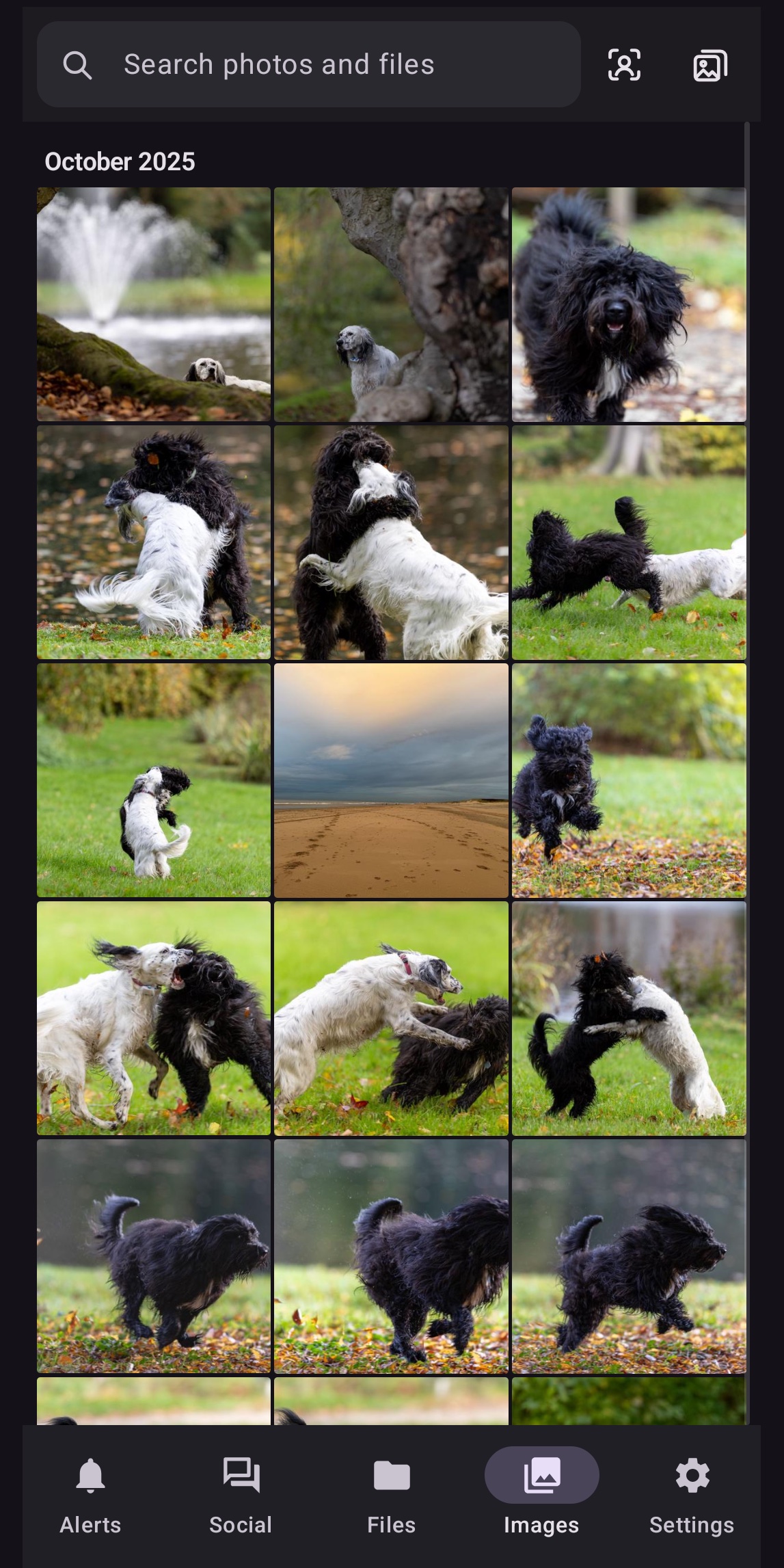
Back up your photos and videos as you take them, browse everything on your device, share with friends, and set up a new device over Bluetooth.
iPhone and iPad
Backs up your photo library, iCloud photos included, and shows your device's photos, files and friends' posts.
Coming soon to the App StoreAndroid
The same app for Android phones and tablets: photo backup, your device's files and photos, and friends' posts.
Get it on Google PlayOne device, four ways to reach it
A Raspberry Pi in your home stores everything; native apps on every platform keep it in sync and let you browse, search, and share it.
The device
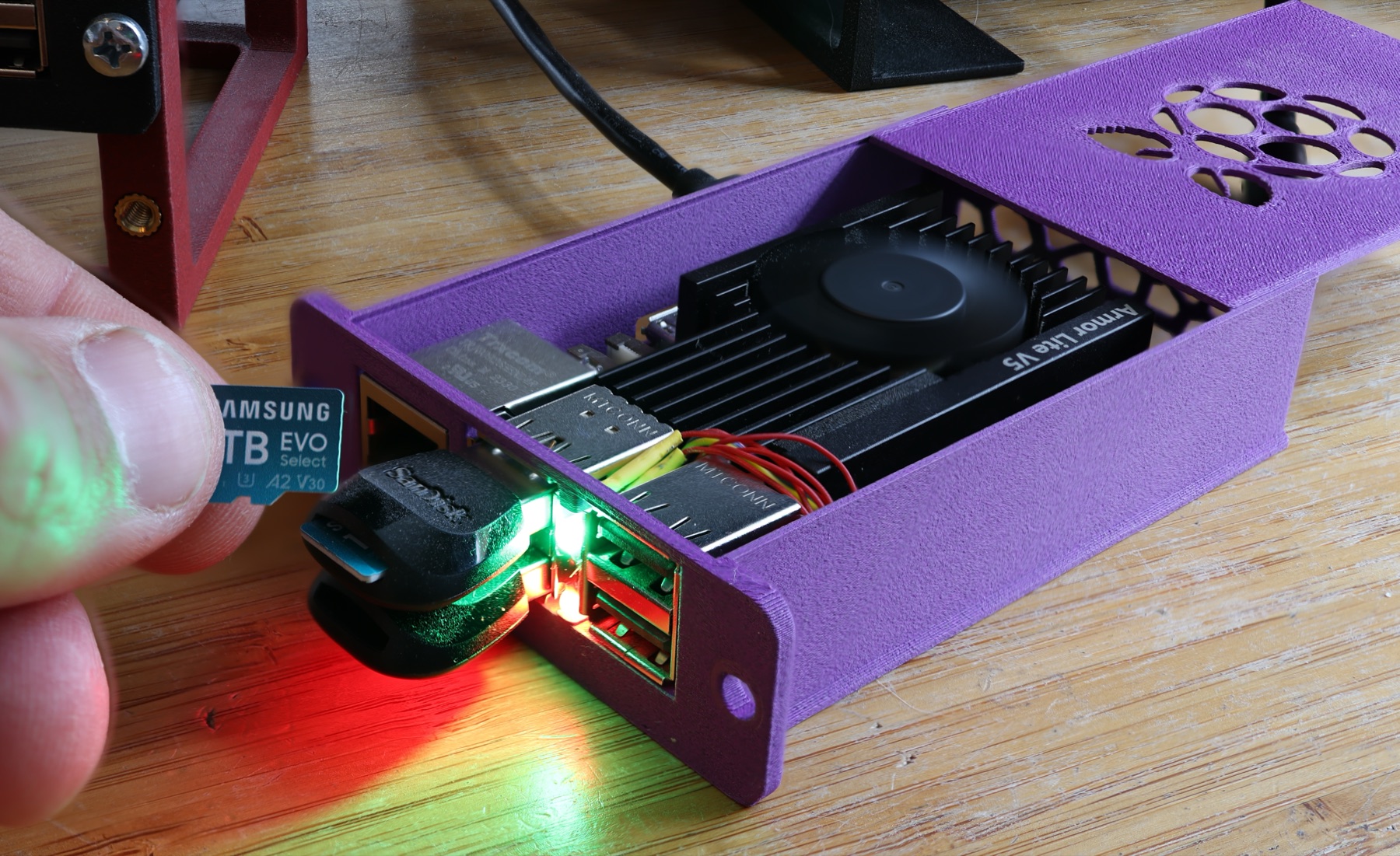
A Raspberry Pi 5 with a card for the system and two storage cards mirrored in RAID-1, storing your originals unprocessed and uncompressed — encrypted at rest, with a key that only your password unlocks.
Desktop client
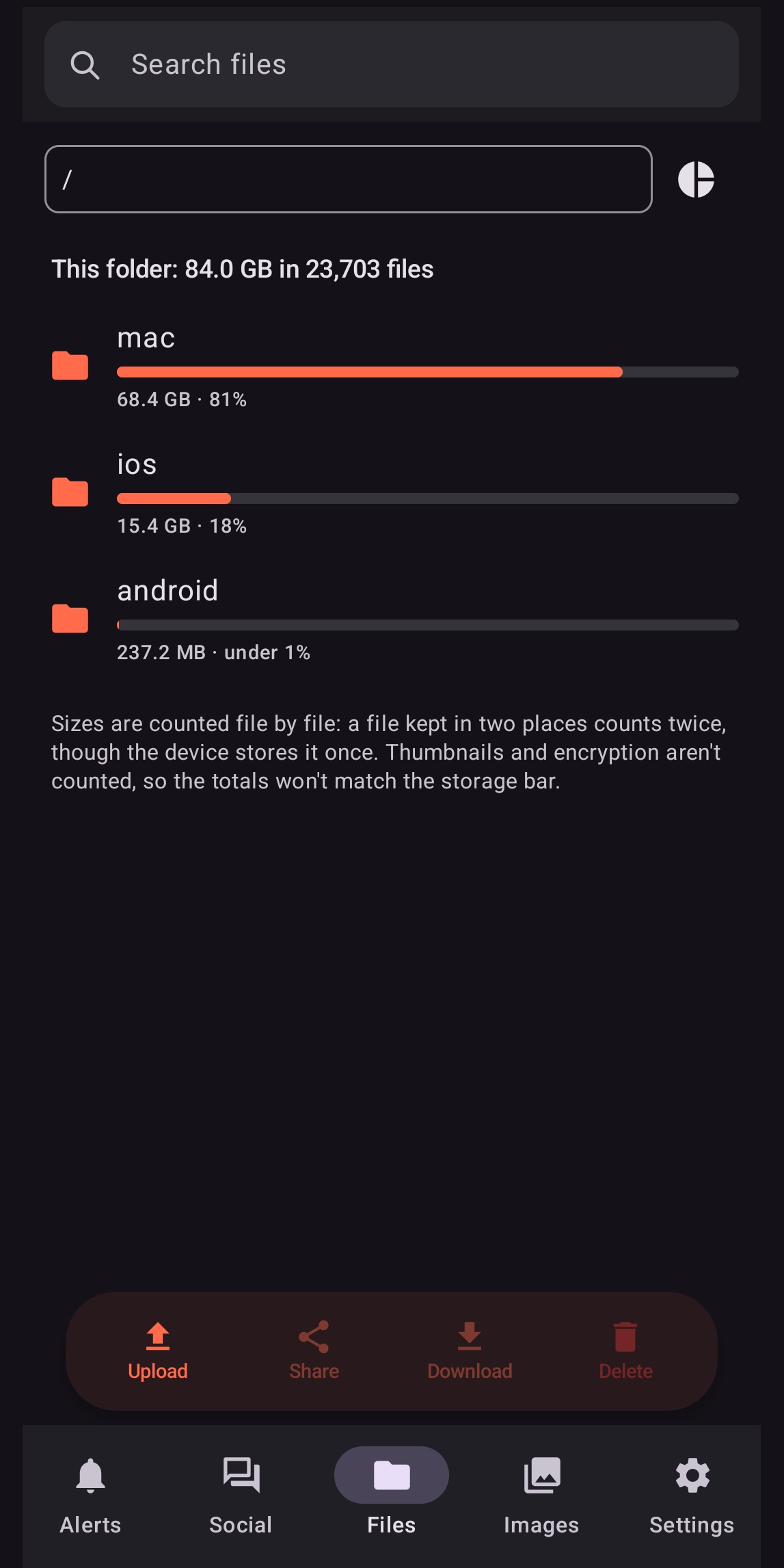
macOS, Windows and Linux apps that keep chosen folders on your computer in two-way sync with the device, automatically.
Mobile app
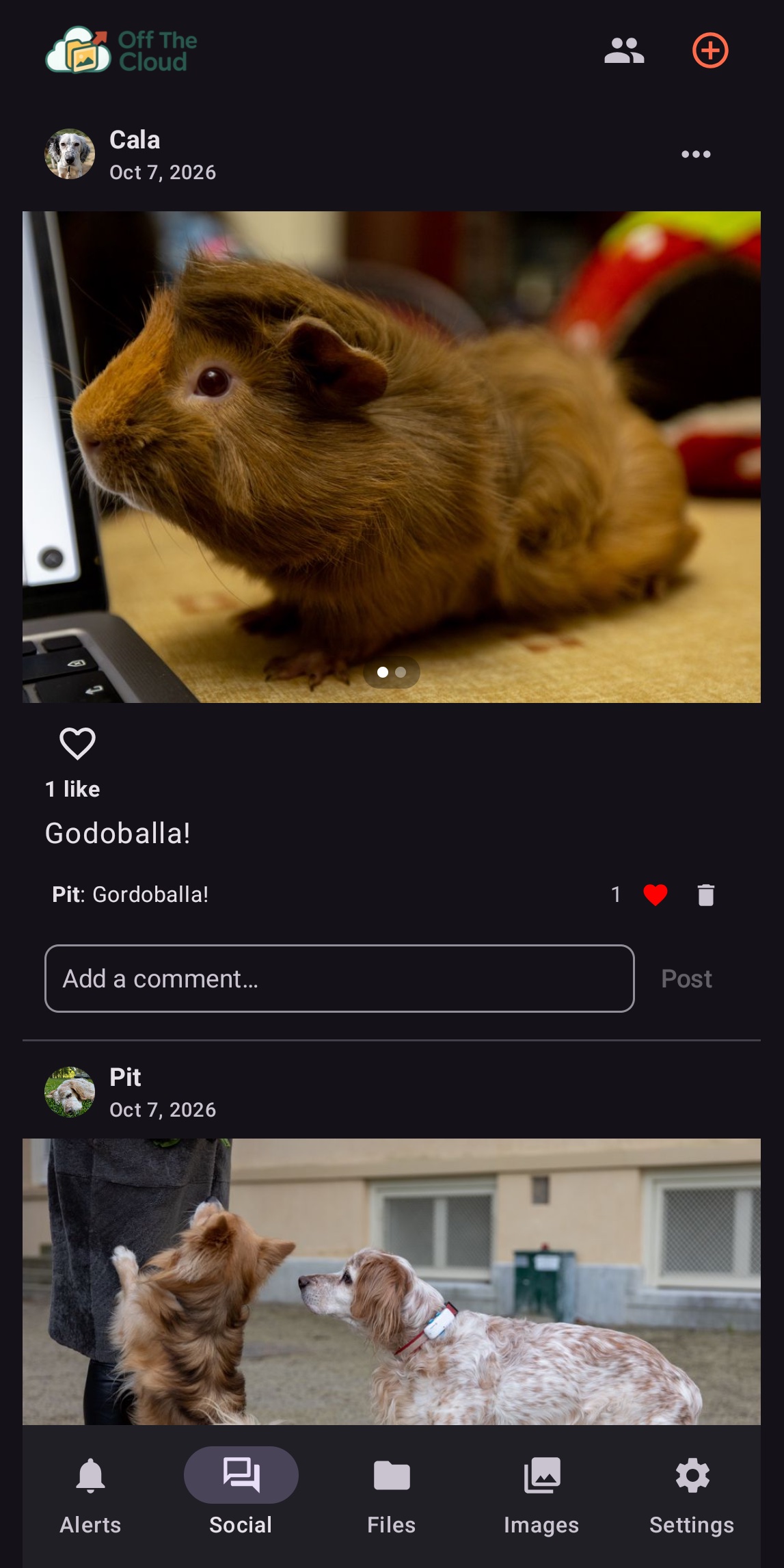
iOS and Android apps that back up your camera roll in the background, in full resolution, and double as the social feed.
Web app
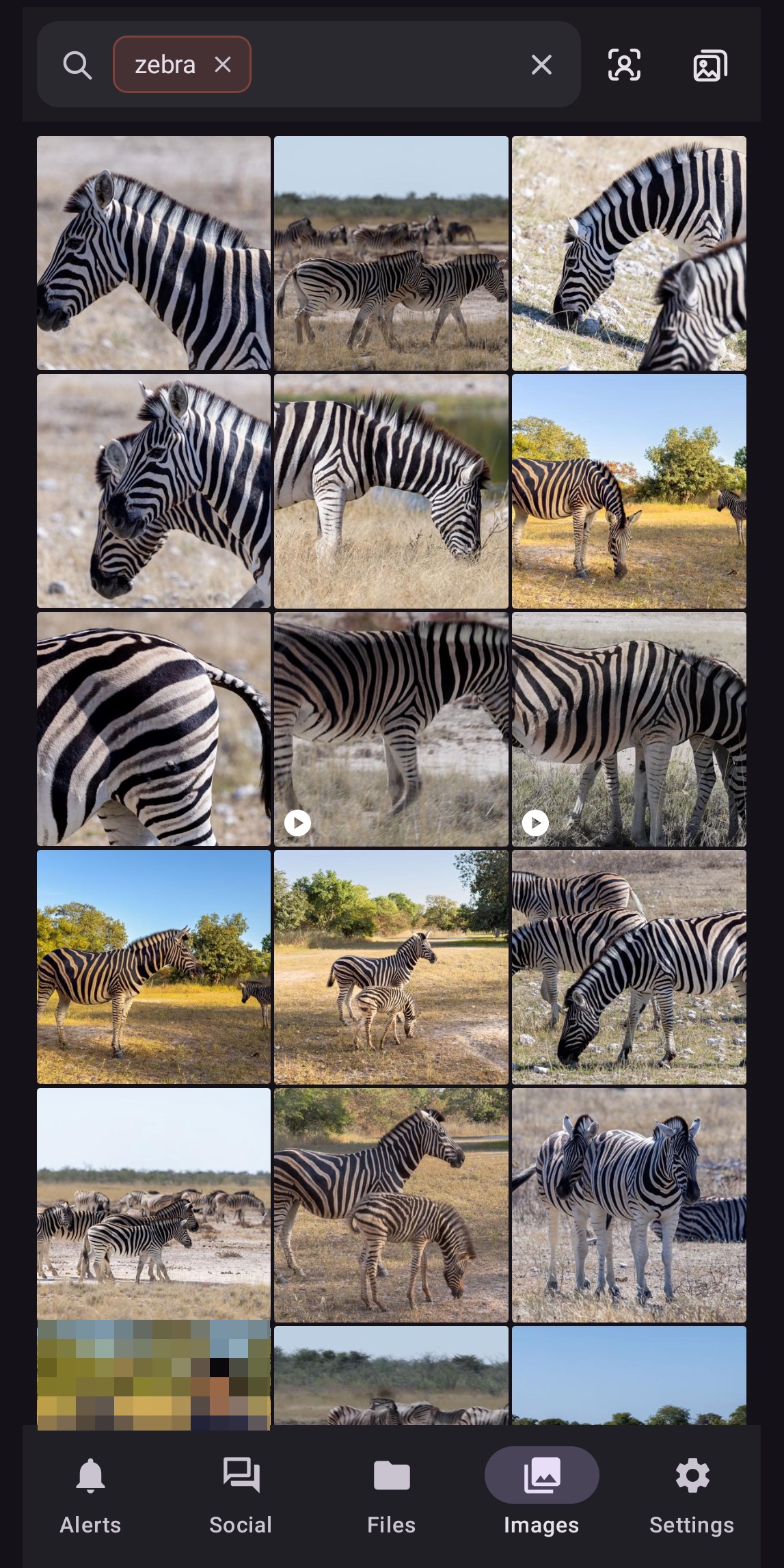
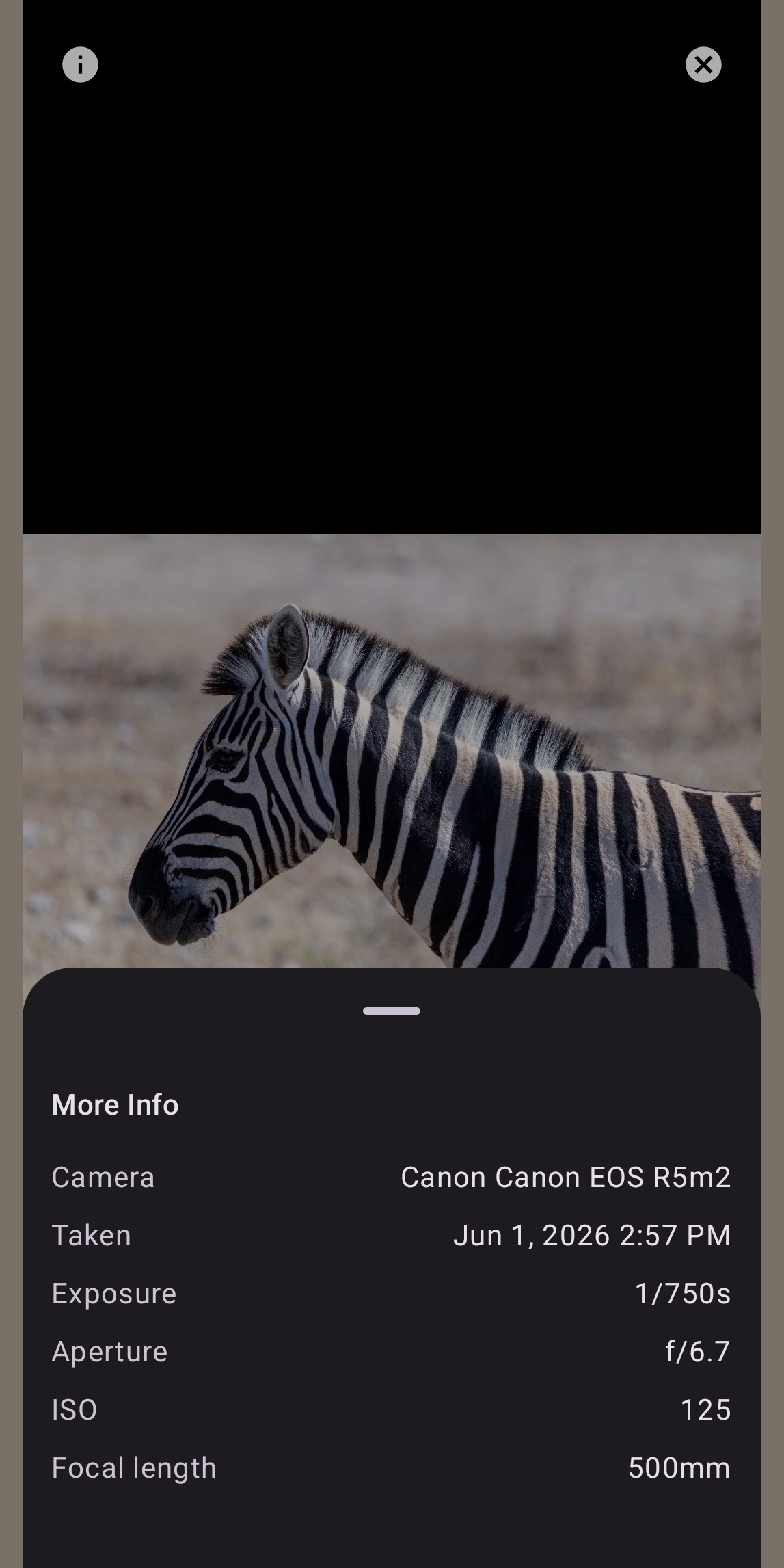
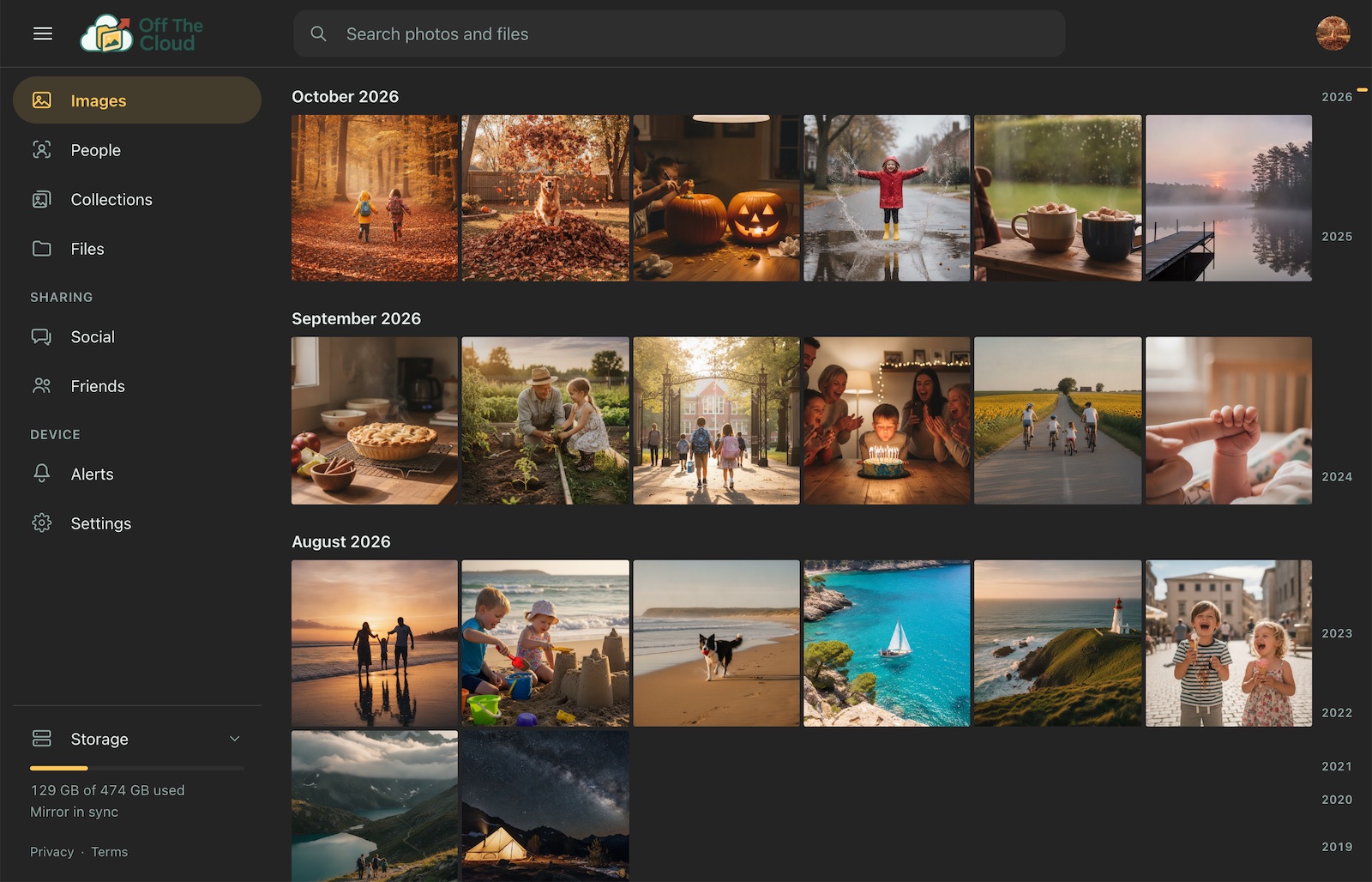
Everything above, from any browser — sign in with just your password, no app install required.
AI search, kept private
Every photo is auto-tagged locally on the device, so you can search "beach" or "dog" instantly — nothing is sent to a third party to do it.
No toxic feed
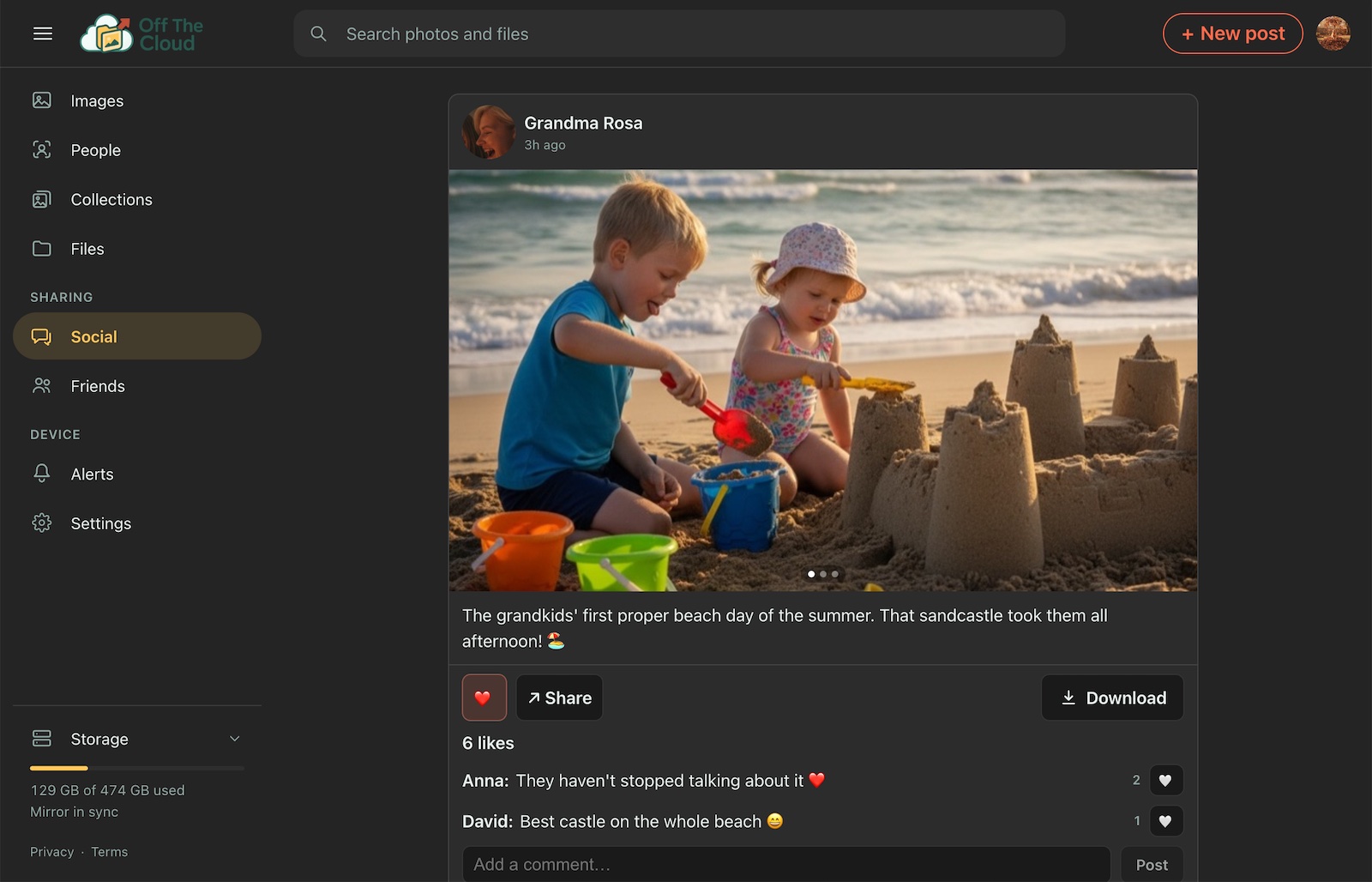
The social side has no ads, no influencers, no engagement algorithm — just posts from people you've actually approved as friends.
One device, the whole family
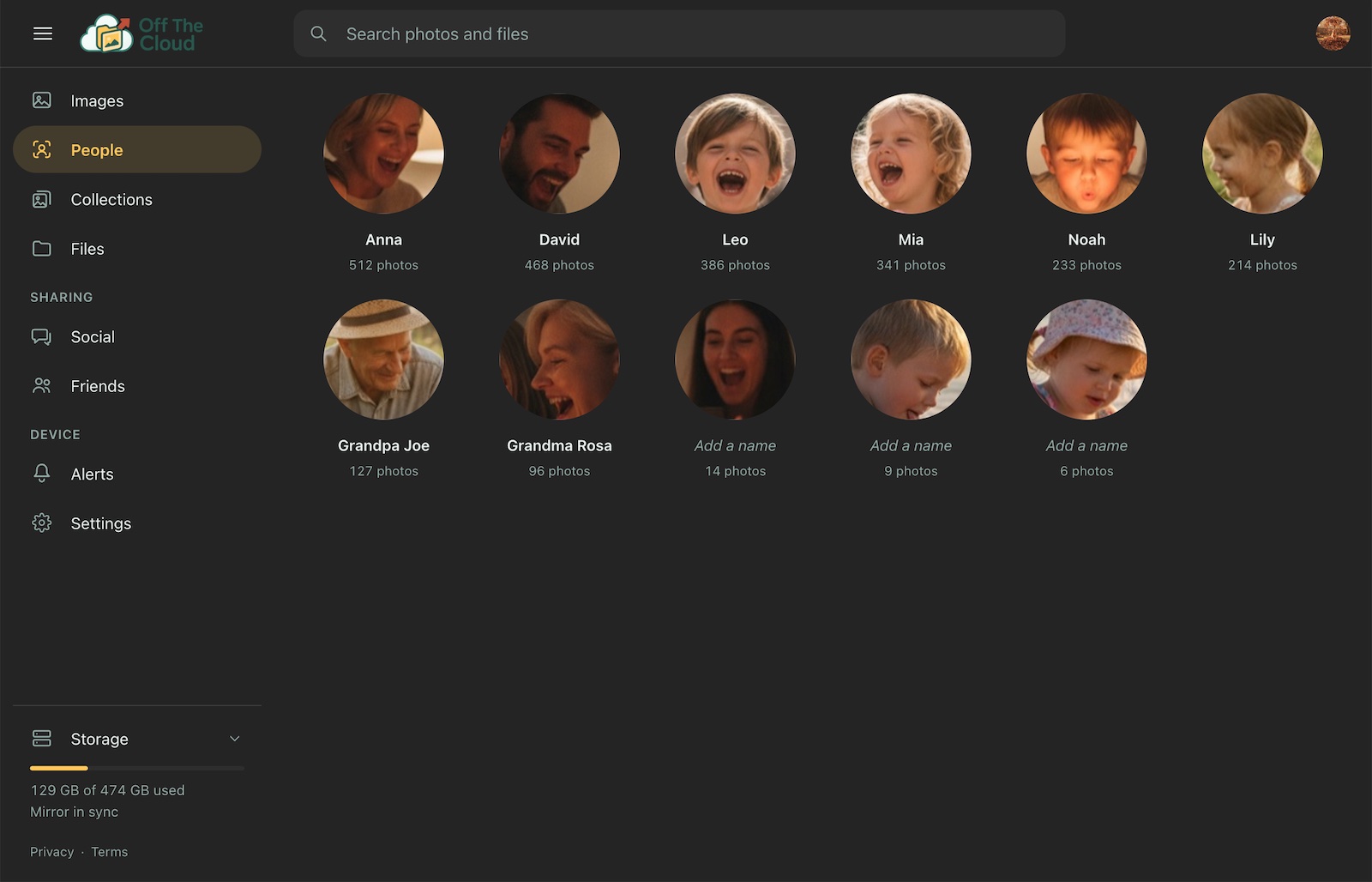
Give everyone at home their own account on the same device — their own photo backup, library and password, each encrypted with its own key. You manage the accounts, but you can't open the photos and files in them.
Share collections with a link
Send a collection of photos to anyone as a link that expires. They open it in their browser, with no account or app, and can download the originals.
Fast at home
At home the apps talk straight to the device over your own network, so a whole holiday's photos back up at Wi-Fi speed instead of crawling over the internet.
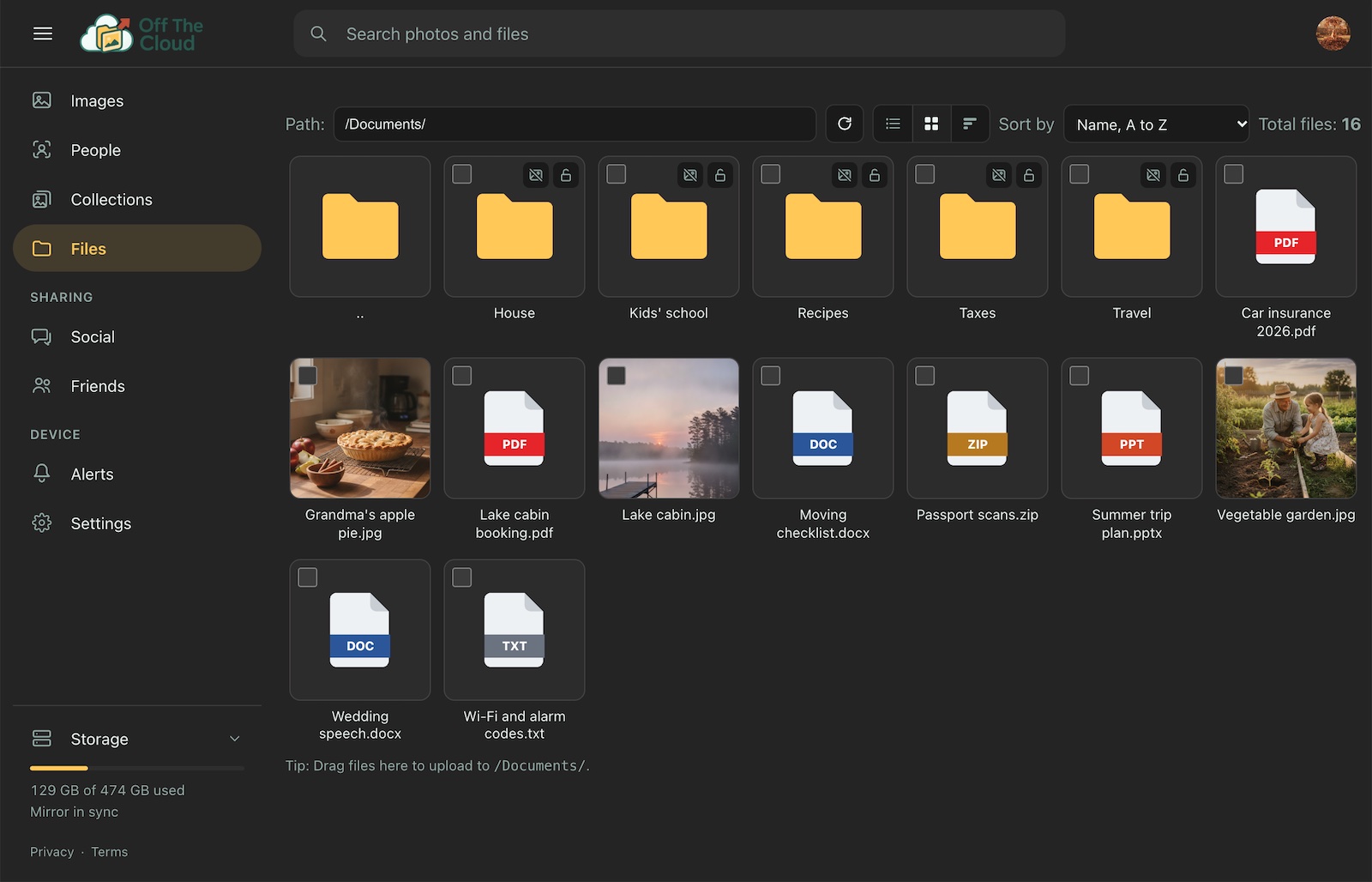
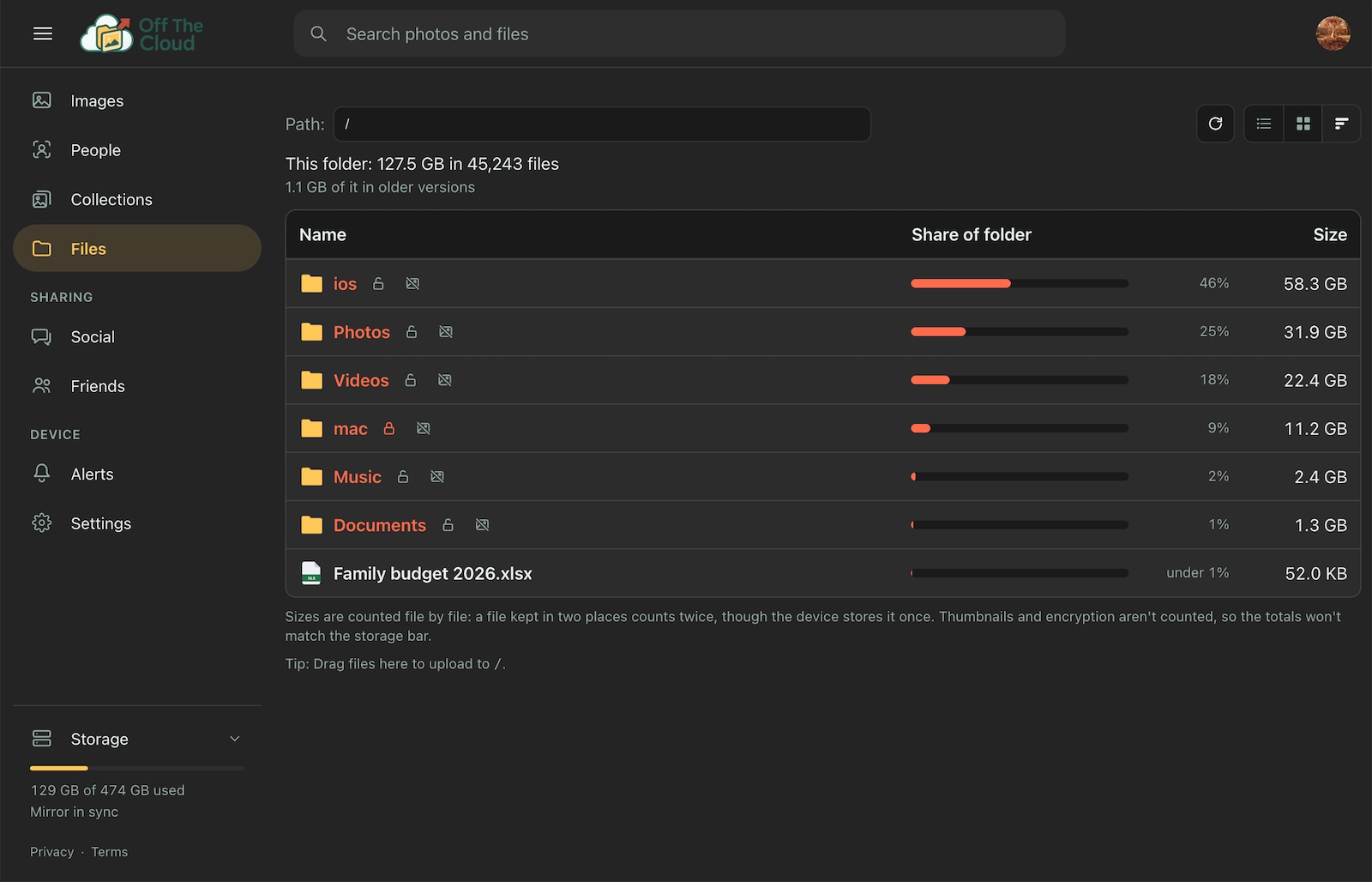
Every part of the system, in one place
The physical device, and the four apps that talk to it.
The device
macOS / Windows client

iOS / Android app
Web app
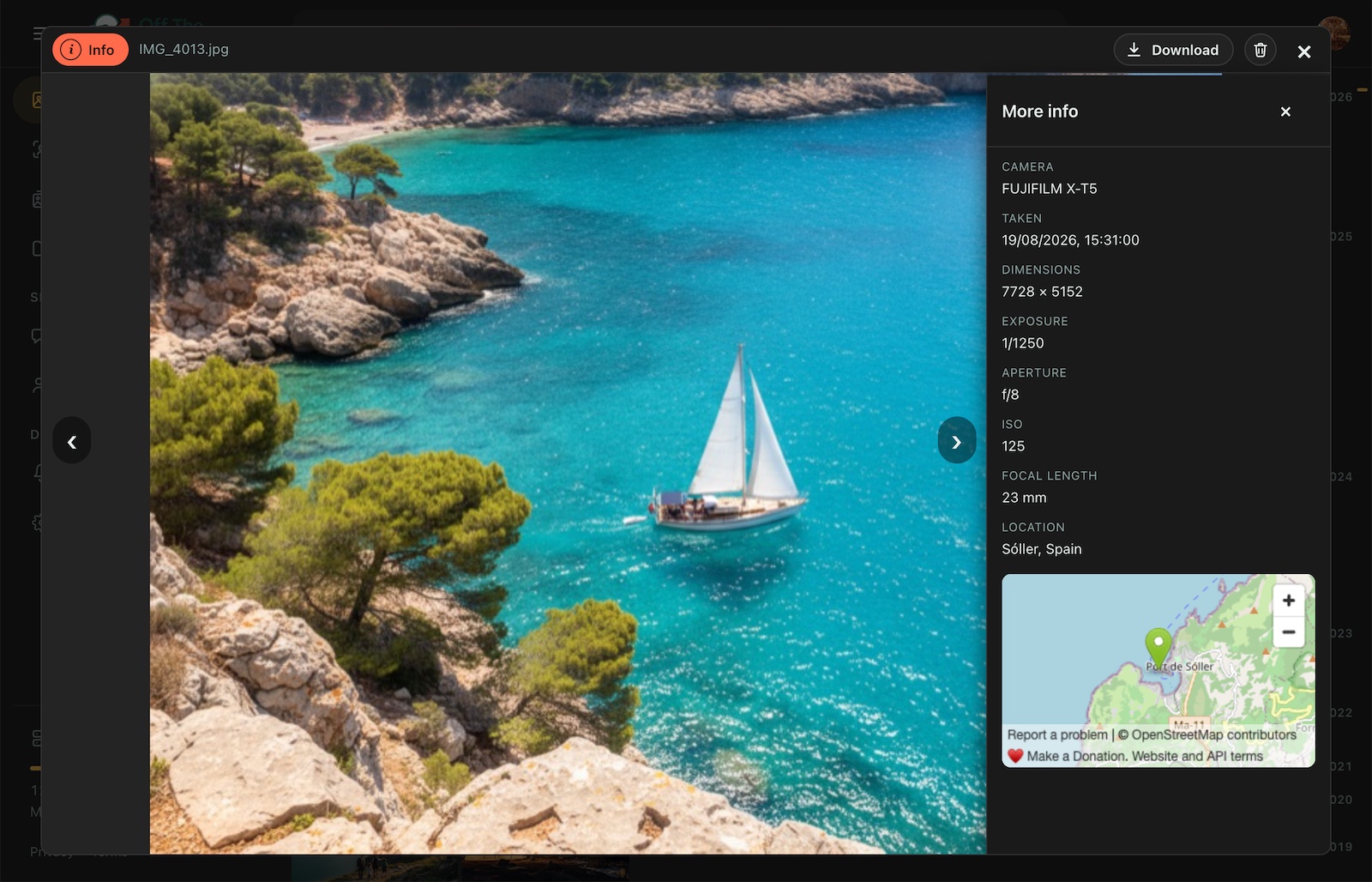
Questions people actually ask
Do I need to buy special hardware?
A Raspberry Pi 5 (8GB) with a micro-SD card for the system and two USB drives for storage, mirrored so that each holds a full copy of your files: USB sticks, SSDs, hard disks or micro-SD cards in USB card readers all work. Plug them into the Pi's two blue USB ports (the fast ones; the device then tells you which one to replace if a drive ever fails). Add a power supply and an active cooler: all off-the-shelf. The Pi and two 512 GB USB sticks come to about €310, roughly €340 all in for 512 GB of protected storage. See the README for the exact recommended parts list. A Pi 5 with 4 GB can work too, with photo tagging and face recognition turned off.
Is there a pre-built image I can just flash?
Yes — for a Raspberry Pi 5 with at least 8 GB of RAM (a 4 GB one works only with Image Tagging and Face Recognition turned off in Settings): see the Raspberry Pi 5 image tab at the top. Flash it, power the Pi on and set it up from your phone: tap "Set up a new device" in the iOS or Android app, which finds the Pi over Bluetooth and walks you through the rest. For any other Debian/Ubuntu machine, use the install script.
Can I use something other than a Raspberry Pi, like an Orange Pi or an old PC?
Yes. The install script works on any 64-bit machine, Intel/AMD or ARM, running Ubuntu, Debian or another Debian-based Linux: an old PC or laptop, a mini PC, or a board such as an Orange Pi with a Debian or Ubuntu image. It builds the software on the machine itself, so you get the same app: photo backup, folder sync, photo tagging, face recognition, friends, sharing and updates from Settings. Give it 8 GB of memory, like the Raspberry Pi 5 it was designed for.
A few things only the Raspberry Pi 5 has:
- The ready-made image and setup from your phone over Bluetooth. Elsewhere you run one command in a terminal, and the first password typed into the device becomes its password, so open it and choose one straight away.
- Knowing which disk to replace. On a Pi the alert names the USB port the failed disk is in; elsewhere it says "one of the two storage disks" and gives the disk's system name and serial number.
- The status lights, which are wired to the Pi's own pins (see below).
The script can mirror two disks on other machines too, but only when you ask it to, because it erases both. If it finds no disks to mirror, it stops and tells you how to install on a single disk. To give the machine an off-the.cloud address, add the name on your account page first and copy the identity it shows into the machine before running the script.
How do I wire the status lights?
The lights are optional: one per storage disk, green when it's fine and red when it needs you. Each light is a red LED and a green LED side by side (or one two-colour LED with three legs), and each colour connects to one pin of the Raspberry Pi through a 330 Ω resistor. Wire them with the Pi switched off. The device lights them by itself; there's nothing to set up.
The same connections, in words:
- Light 1, red: pin 11 (GPIO17), through a 330 Ω resistor, to the long leg of the red LED.
- Light 1, green: pin 13 (GPIO27), through a 330 Ω resistor, to the long leg of the green LED.
- Light 1, both short legs: pin 9 (GND).
- Light 2, red: pin 15 (GPIO22), through a 330 Ω resistor, to the long leg of the red LED.
- Light 2, green: pin 16 (GPIO23), through a 330 Ω resistor, to the long leg of the green LED.
- Light 2, both short legs: pin 14 (GND).
With a two-colour LED, the shared leg (usually the middle one) goes to GND; it must be the kind with a shared negative leg, called common cathode. What the lights say:
- Both green: both disks are working and hold the same files.
- One red, one green: the disk on red has stopped working or was taken out. Your files are safe on the other one: replace the red one soon.
- One flashing red, one green: a new disk is being filled with a copy of your files. Don't take out the green one until both are green again.
- Both red: no mirror is running: the device was set up without two disks, or neither disk is working.
- Both off: the device is off, or still starting.
Each light follows one of the two disks of the mirror, not a USB port, so check the alert in the app to know which disk to pull.
Can my family and friends use the same device, or do I need more Raspberry Pis?
One device is enough. As its owner, you add an account for each person in Settings › Users (in the web app, the iPhone app or the Android app), and they choose their own password the first time they sign in. Each account has its own photo backup and library, and its photos and files are encrypted with that person's password, so you can't open them from your account. Everyone shares the same device and its two mirrored disks; the Users screen shows how much space each account takes, and you can pause an account, or remove it together with its files, at any time.
There's no fixed limit on the number of accounts, but each one runs its own copy of the device's software and takes memory, so the more there are, the slower the device gets. We recommend no more than five on one device.
To use their account away from home, a family member needs an off-the.cloud address of their own, just as a device does. You give them one when you add their account in the web app: in Settings › Users, leave Request bridge access ticked, and they get <user name>.off-the.cloud (if that address is taken, choose another user name). Decide when you add the account, because there's no switch to give an existing account an address later. The iPhone and Android apps don't offer this yet: accounts added there work on your home network only.
The device registers these addresses by itself, outside your bridge account, so they don't count toward its five addresses and don't appear on your account page. With one, a family member reaches their account from anywhere, and you can become friends in the private feed and share photos there.
How do I get more storage?
Swap the two cards for bigger ones, one at a time, while the device keeps running. Take out one card and put in a bigger one, at least as large as the one you took out: the device copies everything onto it by itself (anything already on the new card is erased). You get an alert that a disk stopped working, which is expected here, and another, "Both storage disks are working again", when the copy is done; that can take a few hours for a large card. Only then do the same with the other card. Once both cards are bigger, the device grows its storage to the size of the smaller one by itself, within about ten minutes, without stopping. Your files stay available the whole time, but while a copy runs they are on one card only, so never take out the second card before the first copy has finished.
How do I back up my device?
The two mirrored disks already keep two copies of everything, but both are in the same box: they protect you from one disk failing, not from theft, fire, both disks failing or a file deleted by mistake. For a copy you keep somewhere else, you can rotate one of the disks:
- While the device is running and nothing is uploading, take out one of the two disks. The device carries on with the other one, and you get an alert that a disk stopped working, which is expected here.
- Put a spare disk in its place, at least as large as the one you took out. The device erases it and copies everything onto it by itself. When it's done you get another alert, "Both storage disks are working again"; that can take a few hours.
- Keep the disk you took out somewhere safe, away from the device. To bring your copy up to date later, do the same again: the disk that comes out is your new copy, and the one going in is erased and refilled.
Until a copy has finished, your files are on one disk only, so never take out the other disk before then. While a disk is missing, the device takes any disk you plug in that is big enough as the replacement and erases it, so don't plug in other drives meanwhile.
The disk you keep is a full copy of the device as it was when you took it out: your files, its database, its settings and its address. A computer can't read it directly. To bring it back, set up a Raspberry Pi with the image, attach that disk and choose "Recover this device" in the setup: everything comes back as it was, and once you add a second disk the device fills it again. You need the device password as it was when the disk came out, because the files on it are encrypted with it. Use it only in place of the original device, never at the same time, since both would answer to the same address. The files on it are encrypted, but their names, tags and your posts aren't, so keep it as safe as you would the device itself.
Your phones and computers also keep their own copies: the apps copy your photos and folders to the device, they don't move them. To keep a copy of something on the device on a computer, select it in Files in the web app and choose Download ZIP, or add one of the device's folders to the Mac, Windows or Linux app. That is a sync, not a backup, so a file deleted on one side is deleted on the other.
I forgot my password. Can I get my files back?
We're sorry: no. Your device password is the only thing that unlocks the key your files are encrypted with. The device doesn't keep it, neither do we, and there is no reset and no back door: without it, nobody can open the photos, videos and files stored under it, not you, not anyone else on the device and not us. That is what keeps them safe if the device is ever stolen.
What you can do:
- Is one of your apps still signed in? Then it can still open everything, because it keeps the password. Don't sign out of it, and use it to copy what you need before going further.
- Look for your originals. The apps copy photos and folders to the device without removing them, so most of what's on it may still be on your phones and computers.
- Start again. Flash a new card and set the device up again, choosing "Start fresh instead" (this erases both disks), pick a new password and let your apps back everything up again.
- A family member forgot theirs? The owner can't reset it either. The only way is to remove their account, which deletes its files, and create it again.
Your off-the.cloud account password is a different one: if you forget that, the account page emails you a link to reset it, and your device and files aren't affected. To avoid all this, keep your device password in a password manager or written down somewhere safe. You can change it in Settings at any time, as long as you know the current one, and your files stay as they are.
Can I protect a folder from being deleted by mistake?
Yes: make it upload only, with the lock next to the folder in Files (in the web app, the iPhone app or the Android app). From then on nothing in that folder can be deleted, whether from a phone, a computer or the web, and when a file is uploaded again under the same name the device keeps the older version too, so an edit never overwrites your original. The Mac and Windows/Linux sync apps do this by themselves for a folder you choose to back up. You can clear it again from the same lock; the versions kept so far stay.
What is "the Bridge", and do I need it?
Your device sits behind your home router, so the internet can't reach it on its own. The bridge is our relay at off-the.cloud: it gives your device an address like casa.off-the.cloud and passes connections from your apps and your friends' devices to it. You need it to reach your device away from home, for friends and posts, for share links that work from anywhere and for notifications on your phone. You don't need it at home: files, photo backup from your phones and computers, the gallery, tags and people all work over your own network.
To use it, create an account; the device's setup asks for one, and you can also skip it and join later from Settings. Without the bridge, you can still reach your device from outside your home with Tailscale Funnel or a bridge of your own (see the next question).
Can I use Off The Cloud for free?
Yes. All of Off The Cloud is free, open-source software under the GNU AGPL licence: the device, the apps and the bridge. Used at home it costs nothing beyond your hardware.
The bridge is the only paid part, and it's optional. Your account is free for its first two years; after that it costs €9.99 + VAT a year with up to five off-the.cloud addresses included, and we email you before the free period ends. Each address beyond those five costs €2 a year: your account page registers up to five, so for more, write to us at info@off-the.cloud or with the form below. If you stop paying, your addresses are released and your device keeps working at home.
To reach your device from outside your home without the bridge:
- Tailscale Funnel, built in (Settings › Tailscale Funnel), publishes your device at an address of your own on
ts.net. You need a Tailscale account, Tailscale limits how much can pass through, and friends, posts and family accounts don't work there: it suits a device used as your own private storage. - A bridge of your own: the bridge is open source too, so you can run it on your own server and domain. Friends then need to use the same bridge.
- Your own VPN into your home network: the apps then reach the device as if you were at home.
Is it as fast as a cloud service?
At home it's usually much faster. The iPhone, Android, Mac and Windows/Linux apps connect straight to your device over your own Wi-Fi or network, so backups, big uploads and videos move at local-network speed. A cloud service has to push every file through your home internet connection, whose upload speed is often a small fraction of your Wi-Fi's. Away from home, the apps go through the Bridge as usual. The home connection is encrypted and checked against your device's own key, so nothing is ever sent to a machine pretending to be yours.
Is my data actually private?
Your files are encrypted at rest with a key that only your password unlocks, and the password itself is never stored on the device. Photos and videos you post, and the posts your friends share with you, are the exception: they're kept unencrypted so your friends' devices can fetch them at any time. File names and tags are also kept readable so search works. Nothing is sold, used to train AI models, or shown to anyone you haven't chosen to share it with. The next two questions explain what the bridge and other services see, and where your photos are analysed.
Is any of my information sent to third parties?
Your photos, videos and files stay on your device. Nothing is sold, used for advertising or used to train AI, and none of the apps contain analytics, advertising or crash reporting. A few services are involved, and this is what each one gets:
- The bridge (run by us, on OVH servers in France), if you use it: your account (email, name, surname and country), your devices' names (such as casa.off-the.cloud), when an app last reached each device, hourly traffic totals (never the content) and, for 90 days, the internet address of failed attempts to connect as your device. Connections to it are encrypted, but the bridge decrypts and re-encrypts them as they pass through, so they are not end-to-end encrypted; nothing that passes through is stored. A device without the bridge only contacts it during setup.
- Apple and Google deliver notifications to iPhones and Android phones. A notification only says who did what ("Anna liked your post") or that something happened to your device (a disk stopped working, it went offline), never what a post or comment says, and never a photo. The Android app uses Google's Firebase for this and nothing else. Notifications in a browser go through your browser maker's push service, encrypted.
- Proton sends our emails (confirming your email, password resets, the warning before an unused account is removed) and delivers the device logs you choose to send us.
- Apple or Google sign-in, if you use it, tells us your email and name.
- GitHub serves the device's software and its updates; while installing or updating, the device also downloads building blocks from the Go language's mirror, run by Google, packages from its operating system's and Tailscale's repositories and, the first time, its AI models from Hugging Face and GitHub. Like any download, these see your home's internet address.
- Maps: when you open a photo's details, its map comes from OpenStreetMap (web app and Android) or Apple Maps (iPhone), which see the place being shown.
- Tailscale, only if you turn on Tailscale Funnel (its software is installed, but stays off until then).
There's no payment provider yet. The details are in our privacy notice.
Where are photo tagging and face recognition done?
On your device. The tagging model and the face models are downloaded once, when the software is installed, and run on the device's own processor; with several family accounts, the main one runs them for everyone. No photo is sent anywhere to be tagged or recognised, and place names come from a list of cities stored on the device, so your photos' locations aren't sent anywhere either.
Face recognition is off unless you turn it on, in the setup or in Settings, because faces are sensitive personal data. It looks at the photos added while it's on, and the face data it keeps is encrypted with your password like your files; the names you give people aren't. Tagging is on from the start and can be turned off in Settings.
Your photos leave the device only when you choose: when you post them for your friends, send a share link, or open them from your apps away from home, through the bridge.
Is it really open source?
Yes — the device, bridge, and every client are all open source on GitHub. You can audit it, self-host the bridge yourself, or build your own device image from source.
What if I don't want the social network part?
It's entirely optional. Use OTC purely as a NAS for backup and file sync if that's all you want — the social feed only shows content from friends you've explicitly accepted.
Questions, or need a hand?
Send a message — whether it's a general question, help getting your device running, or more addresses for your bridge account.
Where it stands
The device, the bridge and the web app work today, and so do the apps: iPhone and Android, the Mac app, and otc-sync for Windows and Linux.
Bridge access
Want to reach your device, and your friends, from outside your home network? Create an account on the account page or in your device's setup, and choose your address yourself. Need more than five addresses? Write to us with this form.
Prefer to dig in yourself?
Everything is documented in the README — architecture, config, and every install path.